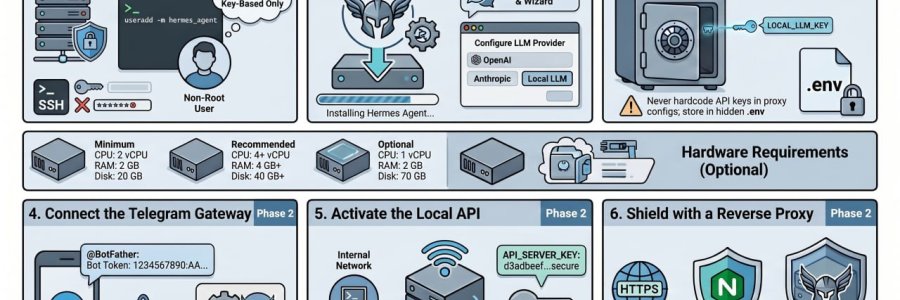
This guide covers a production deployment of Hermes Agent on a Linux server, with security and operations in mind.
We will install Hermes Agent natively, run it under a dedicated non-root user, configure Telegram Gateway as a managed service, enable the local API and dashboard, and place public access behind Nginx or Caddy. The guide also includes operational checks, backup notes, troubleshooting steps, and a final checklist before going live.
The important part is not just whether Hermes Agent starts. A production setup should keep backend ports on localhost, protect dashboard access, keep secrets out of Git and proxy configs, and verify each stage before moving to the next.
Deployment assumptions
This workflow assumes:
- Hermes Agent is installed natively on a Linux VPS or server.
- Hermes runs under a dedicated non-root Linux user.
- The Hermes API binds to
127.0.0.1by default. - Public access goes through Nginx, Caddy, VPN, Cloudflare Access, or Cloudflare Tunnel.
- Telegram Gateway runs as a managed service.
- Secrets are stored in
~/.hermes/.env, not in Git, documentation, or reverse proxy config files. - The dashboard or Workspace UI is protected with additional authentication.
1. System Requirements
1.1 Minimum Server Specification
For light to medium usage:
- OS: Ubuntu Server 22.04/24.04 LTS or Debian 12
- CPU: 2 vCPU minimum
- RAM: 2 GB minimum, 4 GB+ recommended
- Disk: 20 GB minimum, 40 GB+ recommended
- Network:
- Public IP, VPN access, or Cloudflare Tunnel
- Domain/subdomain if HTTPS reverse proxy is required
- User:
- Non-root user with
sudoaccess - Do not run Hermes daily workloads as
root
- Non-root user with
1.2 Required Software
Base packages:
curlgitpython3python3-venvpython3-pippipxor a Python virtual environmentsystemdnginxorcaddyufwor another firewallfail2banfor basic SSH hardening
Optional packages:
nodejsandnpmif running a separate frontend/dashboard stackdockerand Docker Compose if using containerized UI componentscloudflaredif using Cloudflare Tunnel
1.3 External Accounts and API Access
You need at least one supported LLM provider, for example:
- OpenRouter
- Anthropic
- OpenAI
- Gemini
- DeepSeek
- Kimi/Moonshot
- Blackbox.ai or another OpenAI-compatible provider
- Any other provider supported by Hermes Agent
For Telegram Gateway:
- Telegram Bot Token from
@BotFather - Telegram user/chat authorization through Hermes pairing flow
2. System Preparation
2.1 Create a Dedicated Linux User
Create a dedicated user, for example hermes:
sudo adduser hermes
sudo usermod -aG sudo hermes
Switch to the user:
su - hermesOr log in directly via SSH as the hermes user.
2.2 Update System Packages
sudo apt update
sudo apt upgrade -y
Install base dependencies:
sudo apt install -y \
  curl git ca-certificates gnupg lsb-release \
  python3 python3-venv python3-pip pipx \
  ufw fail2ban
Enable pipx path support:
pipx ensurepathLog out and log back in if the shell path does not update immediately.
2.3 Basic Firewall Hardening
For a public server:
sudo ufw default deny incoming
sudo ufw default allow outgoing
sudo ufw allow OpenSSH
sudo ufw allow 80/tcp
sudo ufw allow 443/tcp
sudo ufw enable
If the server is reachable only through VPN/private access, restrict ports 80/443 to trusted IP ranges where possible.
2.4 SSH Hardening
Recommended SSH posture:
- Use SSH keys instead of password login.
- Disable root login.
- Disable password authentication if all admins have working SSH keys.
- Enable
fail2ban. - Consider changing the SSH port only if it fits your operational policy.
Edit SSH config:
sudo nano /etc/ssh/sshd_configRecommended values:
PermitRootLogin no
PasswordAuthentication no
PubkeyAuthentication yes
Restart SSH:
sudo systemctl restart sshKeep one active SSH session open while testing the new login settings.
2.5 Directory and Permission Planning
Default Hermes home directory:
/home/hermes/.hermes/Important paths:
~/.hermes/config.yaml
~/.hermes/.env
~/.hermes/logs/
~/.hermes/sessions/
~/.hermes/skills/
~/.hermes/plugins/
~/.hermes/auth.json
Recommended permissions:
chmod 700 ~/.hermes
chmod 600 ~/.hermes/.env
chmod 600 ~/.hermes/config.yaml
3. Step-by-Step Installation
3.1 Install Hermes Agent
Install using the official installer:
curl -fsSL https://raw.githubusercontent.com/NousResearch/hermes-agent/main/scripts/install.sh | bashReload the shell:
exec $SHELL -lVerify installation:
hermes --version
hermes doctor
3.2 Run Initial Setup Wizard
hermes setupConfigure the following areas:
- Model provider
- API key or provider authentication
- Terminal backend
- Gateway
- Tools
- Agent behavior
You can also use the model picker directly:
hermes model3.3 Configure Model Provider
Security principles:
- Store API keys in
~/.hermes/.env. - Do not store secrets in documentation, Git, Nginx config, or Caddy config.
- Use a stable model for agentic workflows.
- Test low-cost or free models before using them for heavy tool-calling workloads.
Find the environment file path:
hermes config env-pathEdit the environment file:
nano ~/.hermes/.envExample:
OPENROUTER_API_KEY=replace_with_your_keySelect provider/model:
hermes modelValidate the backend:
hermes chat -q "Respond with exactly OK." --quietExpected output:
OK3.4 Recommended Security-Related Hermes Config
Initial secure defaults:
hermes config set security.redact_secrets true
hermes config set privacy.redact_pii true
hermes config set approvals.mode manual
Notes:
security.redact_secrets truehelps mask API keys and tokens in tool output.privacy.redact_pii truehelps redact user identifiers in gateway contexts.approvals.mode manualis safest for risky commands.- Avoid
--yoloon production servers.
Balanced mode if you want more convenience:
hermes config set approvals.mode smartAfter important config changes, restart the gateway or start a new Hermes session.
4. Minimum Telegram Gateway Configuration
4.1 Create a Telegram Bot
In Telegram:
- Open
@BotFather. - Run:
/newbot- Follow the prompts.
- Save the bot token securely.
Example token format:
123456789:ABCDEF_xxxxxDo not share this token.
4.2 Configure Telegram Gateway
Run the gateway setup wizard:
hermes gateway setupChoose Telegram and enter the bot token.
Alternatively, store the token in ~/.hermes/.env:
TELEGRAM_BOT_TOKEN=replace_with_your_telegram_bot_token4.3 Install Gateway as a Service
Install the gateway service:
hermes gateway installStart the gateway:
hermes gateway startCheck gateway status:
hermes gateway statusIf installed as a system service:
systemctl status hermes-gateway.service --no-pagerIf installed as a user service:
systemctl --user status hermes-gateway.service --no-pager4.4 First Telegram Authorization
Send a message to your Telegram bot.
Hermes usually requires pairing/approval before a new chat can control the agent. On the server, run:
hermes pairing list
hermes pairing approve <request_id>
After approval, test from Telegram:
/status
/help
4.5 Telegram Security Best Practices
Recommended practices:
- Never expose the bot token.
- Use pairing/approval; do not allow all users by default.
- Limit Telegram toolsets if the bot is used in shared groups.
- Do not enable destructive auto-approval.
- Enable secret redaction.
- Review logs after setup.
- Run Hermes under a dedicated non-root user.
Useful checks:
hermes status --all
hermes tools list
tail -n 100 ~/.hermes/logs/gateway.log
5. Post-Install: API, Dashboard, and Workspace
Hermes components should be understood separately:
- Hermes Agent CLI: local command-line agent.
- Hermes Gateway/API: backend service for platforms and OpenAI-compatible access.
- Telegram Gateway: messaging adapter.
- Dashboard/Workspace UI: web UI, monitoring, or client layer.
Keep these layers separate when troubleshooting.
5.1 Enable Local API Server
Enable API server for local backend access, reverse proxy, Workspace, or Open WebUI:
hermes config set API_SERVER_ENABLED trueGenerate a strong API key:
openssl rand -hex 32Set the API key:
hermes config set API_SERVER_KEY "<generated_key>"Recommended local-only binding:
hermes config set API_SERVER_HOST 127.0.0.1Do not bind directly to 0.0.0.0 unless you have strong authentication, HTTPS, and a clear reason.
Restart the gateway:
hermes gateway restartVerify health:
curl -fsS http://127.0.0.1:8642/healthExample expected response:
{"status":"ok","platform":"hermes-agent"}Verify the models endpoint:
curl -fsS \
  -H "Authorization: Bearer <API_SERVER_KEY>" \
  http://127.0.0.1:8642/v1/models
5.2 Running the Dashboard
If the dashboard command is available in your Hermes installation:
hermes dashboardRecommended dashboard deployment design:
- Bind dashboard to
127.0.0.1. - Expose it through Nginx, Caddy, VPN, or Cloudflare Access.
- Add Basic Auth, SSO, VPN-only access, or Cloudflare Access.
- Do not expose the dashboard publicly without authentication.
Typical local dashboard target:
127.0.0.1:9119Health check:
curl -fsS http://127.0.0.1:9119/api/status5.3 Optional Workspace or Open WebUI
If using Workspace or Open WebUI:
- Treat the UI as a client.
- Keep Hermes Gateway/API as the backend agent service.
- Use internal API URL:
http://127.0.0.1:8642/v1- Use the same value as
API_SERVER_KEYfor the client API token/key. - Do not expose Hermes API directly without HTTPS and authentication.
For Docker-based UI that must access the host:
http://host.docker.internal:8642/v1On Linux Docker, you may need:
--add-host=host.docker.internal:host-gateway5.4 Post-Install Verification Checklist
Run:
hermes doctor
hermes config check
hermes status --all
hermes chat -q "Respond with exactly OK." --quiet
curl -fsS http://127.0.0.1:8642/health
If gateway runs under systemd:
systemctl status hermes-gateway.service --no-pager
journalctl -u hermes-gateway.service --since "10 minutes ago" --no-pager
Port check:
sudo ss -tlnp | grep -E ':(8642|9119|3000|3001)\b'Expected secure posture:
127.0.0.1:8642    Hermes API
127.0.0.1:9119    Dashboard
0.0.0.0:80/443    Nginx or Caddy only
6. Reverse Proxy Deployment Using Nginx or Caddy
6.1 Recommended Domain Layout
Example:
agent.example.com       -> Hermes API, optional and protected
dashboard.example.com   -> Hermes Dashboard or Workspace UI
Safer option:
dashboard.example.com   -> UI only, protected
agent.example.com       -> not public; VPN/private access only
Best practices:
- Do not expose
/v1publicly unless required. - If the API is exposed, require HTTPS, bearer token, rate limiting, and IP allowlist where possible.
- Dashboard must have additional authentication.
- Use Cloudflare Access, VPN, Basic Auth, or SSO.
Option A: Nginx Reverse Proxy
6.2 Install Nginx and Certbot
sudo apt install -y nginx certbot python3-certbot-nginxAllow firewall access:
sudo ufw allow 'Nginx Full'6.3 Nginx Reverse Proxy for Dashboard
Create config file:
sudo nano /etc/nginx/sites-available/hermes-dashboard.confExample:
server {
    listen 80;
    server_name dashboard.example.com;

    location / {
        proxy_pass http://127.0.0.1:9119;
        proxy_http_version 1.1;

        proxy_set_header Host $host;
        proxy_set_header X-Real-IP $remote_addr;
        proxy_set_header X-Forwarded-For $proxy_add_x_forwarded_for;
        proxy_set_header X-Forwarded-Proto $scheme;

        proxy_set_header Upgrade $http_upgrade;
        proxy_set_header Connection "upgrade";
    }
}
Enable the site:
sudo ln -s /etc/nginx/sites-available/hermes-dashboard.conf /etc/nginx/sites-enabled/
sudo nginx -t
sudo systemctl reload nginx
Enable HTTPS:
sudo certbot --nginx -d dashboard.example.com6.4 Add Basic Auth for Dashboard in Nginx
Install password utility:
sudo apt install -y apache2-utilsCreate password file:
sudo htpasswd -c /etc/nginx/.htpasswd-hermes-dashboard wawanUpdate the location / block:
location / {
    auth_basic "Restricted Hermes Dashboard";
    auth_basic_user_file /etc/nginx/.htpasswd-hermes-dashboard;

    proxy_pass http://127.0.0.1:9119;
    proxy_http_version 1.1;

    proxy_set_header Host $host;
    proxy_set_header X-Real-IP $remote_addr;
    proxy_set_header X-Forwarded-For $proxy_add_x_forwarded_for;
    proxy_set_header X-Forwarded-Proto $scheme;

    proxy_set_header Upgrade $http_upgrade;
    proxy_set_header Connection "upgrade";
}
Validate and reload:
sudo nginx -t
sudo systemctl reload nginx
6.5 Optional Nginx Reverse Proxy for Hermes API
If the API must be published, use a separate protected subdomain:
agent.example.comExample:
server {
    listen 80;
    server_name agent.example.com;

    location / {
        proxy_pass http://127.0.0.1:8642;
        proxy_http_version 1.1;

        proxy_set_header Host $host;
        proxy_set_header X-Real-IP $remote_addr;
        proxy_set_header X-Forwarded-For $proxy_add_x_forwarded_for;
        proxy_set_header X-Forwarded-Proto $scheme;

        client_max_body_size 20M;
    }
}
Enable HTTPS:
sudo certbot --nginx -d agent.example.comRecommended additional protection:
- IP allowlist
- Basic Auth if compatible with the client
- Rate limiting
- Cloudflare Access or VPN
- Keep
API_SERVER_KEYenabled
Example IP allowlist:
allow 203.0.113.10;
deny all;
Option B: Caddy Reverse Proxy
6.6 Install Caddy
Debian/Ubuntu:
sudo apt install -y debian-keyring debian-archive-keyring apt-transport-https curl

curl -1sLf 'https://dl.cloudsmith.io/public/caddy/stable/gpg.key' \
  | sudo gpg --dearmor -o /usr/share/keyrings/caddy-stable-archive-keyring.gpg

curl -1sLf 'https://dl.cloudsmith.io/public/caddy/stable/debian.deb.txt' \
  | sudo tee /etc/apt/sources.list.d/caddy-stable.list

sudo apt update
sudo apt install -y caddy
6.7 Caddy Reverse Proxy for Dashboard
Edit Caddyfile:
sudo nano /etc/caddy/CaddyfileExample:
dashboard.example.com {
    encode gzip

    basicauth {
        wawan <hashed_password>
    }

    reverse_proxy 127.0.0.1:9119
}
Generate password hash:
caddy hash-passwordValidate and reload:
sudo caddy validate --config /etc/caddy/Caddyfile
sudo systemctl reload caddy
Caddy automatically handles HTTPS through Let's Encrypt when DNS is correct.
6.8 Optional Caddy Reverse Proxy for Hermes API
Basic API reverse proxy:
agent.example.com {
    encode gzip

    reverse_proxy 127.0.0.1:8642
}
Safer API reverse proxy with IP restriction:
agent.example.com {
    encode gzip

    @allowed remote_ip 203.0.113.10
    handle @allowed {
        reverse_proxy 127.0.0.1:8642
    }

    respond "Forbidden" 403
}
Or with Basic Auth if compatible with your client:
agent.example.com {
    encode gzip

    basicauth {
        wawan <hashed_password>
    }

    reverse_proxy 127.0.0.1:8642
}
7. Security Best Practices Summary
7.1 Binding and Exposure
Recommended:
Hermes API       127.0.0.1:8642
Dashboard        127.0.0.1:9119
Reverse Proxy    0.0.0.0:80/443
Avoid:
Hermes API       0.0.0.0:8642 without strong auth
Dashboard        public without auth
Running Hermes as root
Putting API keys in docs, Git, Nginx config, or Caddy config
7.2 Secrets Management
Rules:
- API keys go to
~/.hermes/.env. config.yamlshould store non-secret config where possible.- Restrict file permissions:
chmod 700 ~/.hermes
chmod 600 ~/.hermes/.env
chmod 600 ~/.hermes/config.yaml- Never paste
.envinto support chats or GitHub issues. - Enable redaction:
hermes config set security.redact_secrets true7.3 Gateway Safety
Recommended:
hermes config set approvals.mode manual
hermes config set privacy.redact_pii true
Optional balanced mode:
hermes config set approvals.mode smartAvoid in production:
hermes --yolo
hermes config set approvals.mode off
7.4 Reverse Proxy Security
Minimum requirements:
- HTTPS
- Strong password/authentication for dashboard
- API key for Hermes API
- No direct public access to internal ports
- Logs enabled
- Rate limiting if API is exposed
Better options:
- Cloudflare Access
- VPN-only access
- IP allowlist
- Separate subdomains
- Separate Linux user
- Automated backup for
~/.hermes
8. Backup and Restore
8.1 Important Paths to Back Up
Back up:
~/.hermes/config.yaml
~/.hermes/.env
~/.hermes/auth.json
~/.hermes/skills/
~/.hermes/plugins/
~/.hermes/sessions/
~/.hermes/memory/
~/.hermes/cron/
Simple backup command:
tar -czf hermes-backup-$(date +%F).tar.gz ~/.hermesImportant: this backup contains secrets.
Recommended backup controls:
- Encrypt backups.
- Store backups off-server.
- Restrict access.
- Rotate old backups.
- Test restore regularly.
8.2 Restore Procedure
On a new server:
curl -fsSL https://raw.githubusercontent.com/NousResearch/hermes-agent/main/scripts/install.sh | bashRestore the backup:
cd ~
tar -xzf hermes-backup-YYYY-MM-DD.tar.gz
sudo chown -R $(whoami):$(whoami) ~/.hermes
chmod 700 ~/.hermes
chmod 600 ~/.hermes/.env ~/.hermes/config.yaml
Verify:
hermes doctor
hermes status --all
hermes skills list
hermes cron list
hermes chat -q "Respond with exactly OK." --quiet
Restart gateway if needed:
hermes gateway restart9. Operations and Maintenance
9.1 Daily Checks
hermes status --all
hermes doctor
systemctl status hermes-gateway.service --no-pager
9.2 Logs
tail -n 100 ~/.hermes/logs/gateway.log
journalctl -u hermes-gateway.service --since "1 hour ago" --no-pager
9.3 Restart Gateway
hermes gateway restartOr with systemd:
sudo systemctl restart hermes-gateway.service9.4 Update Hermes
hermes update
hermes doctor
hermes chat -q "Respond with exactly OK." --quiet
10. Troubleshooting
10.1 Gateway Does Not Start
Check status and logs:
hermes gateway status
tail -n 100 ~/.hermes/logs/gateway.log
journalctl -u hermes-gateway.service --since "30 minutes ago" --no-pager
Common causes:
- Missing API key or provider credential
- Invalid Telegram bot token
- Permission issue in
~/.hermes - Port already in use
- Broken config after manual edit
Run:
hermes doctor
hermes config check
10.2 Telegram Bot Does Not Reply
Check:
hermes status --all
hermes gateway status
hermes pairing list
tail -n 100 ~/.hermes/logs/gateway.log
Possible causes:
- Chat/user has not been approved.
- Bot token is wrong.
- Gateway service is stopped.
- Telegram platform is not enabled.
- Model provider is failing.
Run a backend smoke test:
hermes chat -q "Respond with exactly OK." --quiet10.3 Reverse Proxy Shows 502 Bad Gateway
Check local target first:
curl -fsS http://127.0.0.1:8642/health
curl -fsS http://127.0.0.1:9119/api/status
Check ports:
sudo ss -tlnp | grep -E ':(8642|9119|3000|3001|80|443)\b'Check reverse proxy config:
sudo nginx -t
sudo systemctl status nginx --no-pager
For Caddy:
sudo caddy validate --config /etc/caddy/Caddyfile
sudo systemctl status caddy --no-pager
10.4 Model Provider Fails
Check config and credentials:
hermes config check
hermes doctor
hermes model
hermes chat -q "Respond with exactly OK." --quiet
Check .env permissions:
ls -la ~/.hermes/.env ~/.hermes/config.yamlCommon causes:
- Wrong API key
- Wrong model ID
- Provider quota exhausted
- Provider endpoint not OpenAI-compatible
- Gateway not restarted after config changes
10.5 Config Changes Do Not Apply
After changing config:
hermes gateway restartOr restart systemd service:
sudo systemctl restart hermes-gateway.serviceFor CLI sessions, exit and start a new session.
For Telegram, you can also use:
/restartif the gateway slash command is available and authorized.